
How To Connect PS4 Controller To PC Wired: The Ultimate Guide
Playing games on a computer is fantastic. You get high frame rates, better graphics, and mods. But sometimes, a keyboard and mouse just feel wrong. Try playing a racing simulator or a brutal action game like Elden Ring with a keyboard. It is a nightmare. You know what? Some games practically beg for a gamepad.
The DualShock 4 is honestly one of the best pads ever made. It is comfortable, the buttons are responsive, and you probably already have one lying around from your console days.
And sticking to a cable is smart. Bluetooth can be sketchy on Windows. You get random disconnects, lag spikes, and dead batteries right in the middle of a boss fight. A physical cable fixes all of that. You just plug it in and play. No battery anxiety. No syncing issues.
Here is how it works. Getting this set up is mostly painless, but Windows can sometimes act a little weird. Let me explain exactly what you need to do.
Why A Cable Beats Wireless Every Time?
Look, wireless technology is great for walking around the house. But for gaming? Latency is your worst enemy. When you play wired, your inputs register instantly. We are talking less than a few milliseconds of delay. In fast-paced fighting games, that fraction of a second matters.
Plus, you never have to worry about charging. The USB cord handles the data transfer and powers the device at the same time.
Before we start, let us grab the essentials. You do not need much, but having the right gear saves you a headache later.
- A genuine DualShock 4 gamepad.
- A micro-USB cable that transfers data.
- A working USB port on your desktop or laptop.
That second bullet point is crucial. Some cheap cables only provide power. If you plug it in and nothing happens, your cable is probably the culprit. Grab a proper data cable.
Steps On How To Connect PS4 Controller To PC Wired
So here’s what happened when I first tried this. I plugged the cord into my rig, hoping Windows would just figure it out. It did not. Windows favors Microsoft products. Xbox gamepads work instantly. Sony pads need a little help.
But if you play most of your games on Steam, you are in luck. Valve did all the heavy lifting for us. Steam has built-in support for the PlayStation pad:
- First, launch Steam. Look at the top left corner of the screen. Click on “Steam” and then click on “Settings.”
- In the settings menu, find the “Controller” tab. Click on it. You will see a section for “General Controller Settings.”
- This opens a new window in Big Picture mode. Here, you will see a bunch of checkboxes. Check the box that says “PlayStation Configuration Support.”
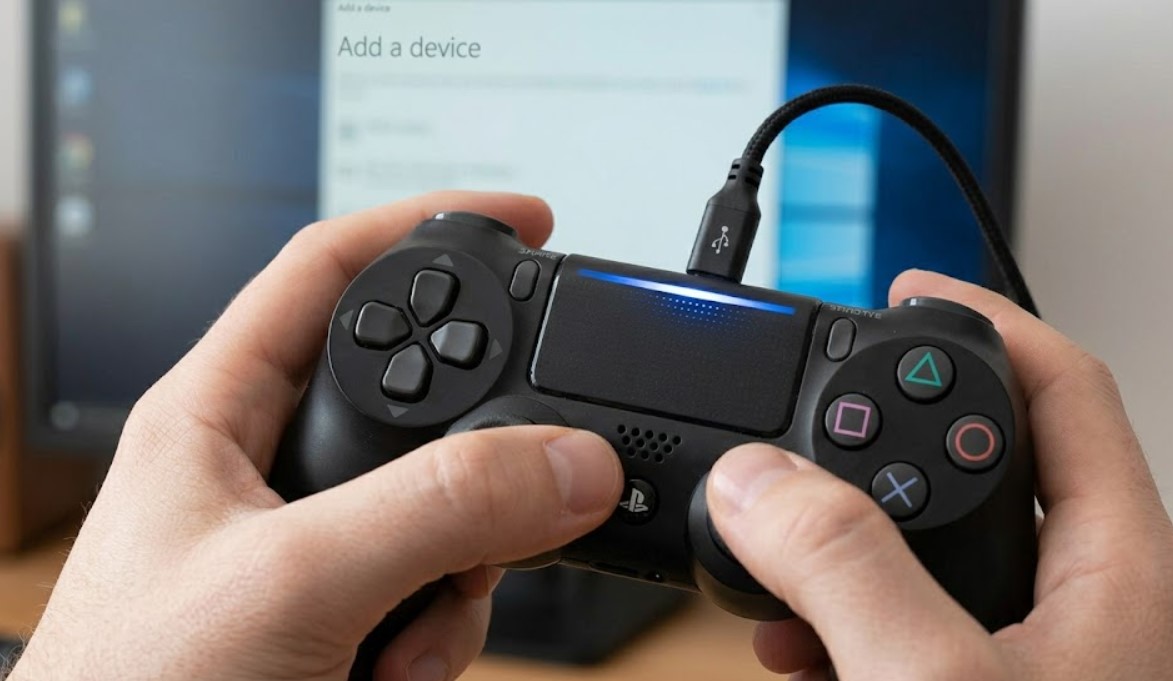
- Now, plug your micro-USB cable into the pad, and the other end into your desktop.
- Steam should immediately recognize it. You might even see the light bar turn blue. That means you are good to go.
Any game you launch through Steam will now see your device. It will automatically translate your button presses so the game understands them.
What If You Are Playing Non-Steam Games?
But there’s a catch. Not everything lives on Steam. Maybe you want to play Fortnite on the Epic launcher. Or maybe you have Xbox Game Pass for PC. If you try playing those AAA games right now, nothing will happen. The computer will just stare blankly at your PlayStation pad.
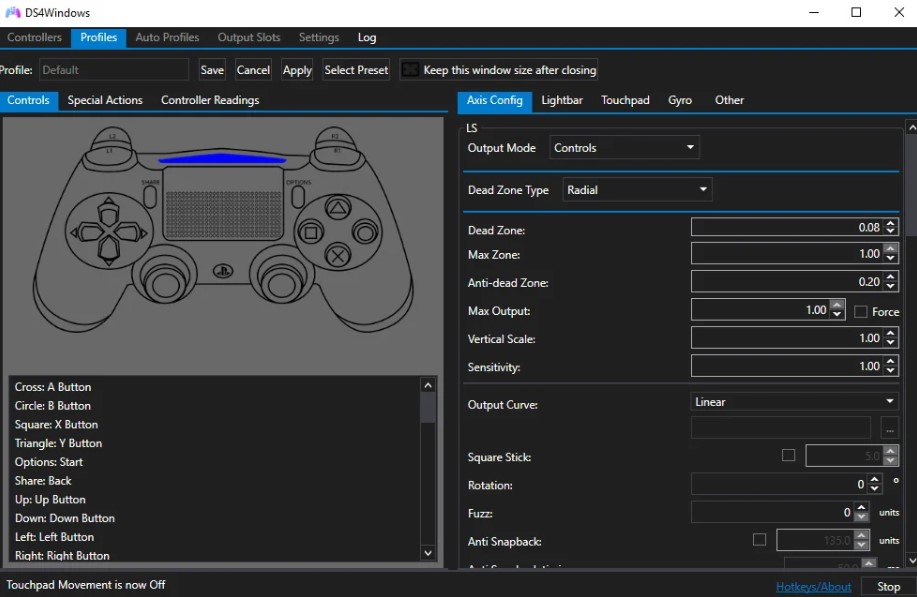
This might help you. There is a brilliant little piece of software called DS4Windows. It is entirely free and solves this exact problem.
Basically, DS4Windows tricks your computer. It makes Windows think you have an Xbox 360 gamepad plugged in. Since Windows loves Xbox devices, every game suddenly works.
Here is what you do:
- Search for the official DS4Windows website and download the latest zip file. Extract the files into a folder on your desktop.
- Run the application. A window will pop up asking you to install the ViGEmBus driver. Just click install. It is totally safe and necessary for the trick to work.
- Once the driver finishes installing, plug in your USB cord. The software should immediately detect your device.
- You will see it listed on the screen. The light bar should light up, and you can even customize the colors or tweak the dead zones.
As long as DS4Windows is running in the background, you can play literally any PC game with your PlayStation pad.
Understanding Software Compatibility
It helps to know which method works best for your specific setup. Here is a quick breakdown.
| Platform / Launcher | Native Support | Best Method to Play |
| Steam | Yes (Requires checking a box) | Steam Big Picture Settings |
| Epic Games | No (For most titles) | DS4Windows |
| Xbox Game Pass | No | DS4Windows |
| GOG Galaxy | Mixed (Depends on the game) | DS4Windows |
| Emulators | Yes (Usually built-in) | Map buttons manually |
Honestly, I keep DS4Windows installed no matter what. It is a lifesaver when an older game refuses to acknowledge my controller.
And it is incredibly lightweight. It just sits in your system tray doing its job without slowing down your rig.
Fixing Bugs: How To Connect PS4 Controller To PC Wired
Sometimes things go wrong. You plug everything in, and the light bar stays dark. Or worse, your computer throws an error message.
The most common issue is a bad cord. Like I mentioned earlier, so many micro-USB cords are strictly for charging cheap electronics. They lack the inner wires needed for data transfer. If your desktop does not make that classic “device connected” sound when you plug it in, swap the cord. Nine times out of ten, that fixes the problem.
Another weird glitch involves your audio. I remember setting this up once, getting ready to play, and suddenly my speakers went completely silent.
Windows has a funny habit of confusing the PlayStation pad for a headset. Because the pad has a built-in headphone jack, Windows reroutes all your sound to it. To fix this, click the speaker icon in your bottom right taskbar. You will see a list of audio output devices. Simply switch it back to your regular speakers or your gaming headset. The sound will instantly come back.
Quick Troubleshooting Reference
If you hit a wall, check this table. It covers the most common annoyances gamers run into.
| The Problem | Why It Happens | The Quick Fix |
| No light bar, not recognized | Faulty or charge-only cord | Buy a high-quality data micro-USB cord |
| PC speakers stop making sound | Windows thinks the pad is a headset | Change audio output back to speakers |
| Game shows Xbox button prompts | Game lacks PlayStation icon files | Normal behavior; you just have to memorize ABXY |
| Character walks by themselves | Stick drift or bad deadzones | Increase stick deadzone in DS4Windows |
| Randomly disconnects | Loose physical port on the pad | Try a different cord or gently secure it |
And here’s the thing about the physical ports. Micro-USB ports are notoriously fragile. Over time, the little pins get bent or loose.
If your connection drops every time you shift your hands, the port on your pad might be wearing out. Trying a brand new, tight-fitting cord often helps secure the connection.
If it still wiggles around, you might need to rest the cord carefully on your lap while playing. It is annoying, but it works.
Getting The Most Out Of Your Setup
Once you know how to connect PS4 controller to PC wired, a whole new world of gaming opens up. You get the best of both platforms. You get the insane graphics of a high-end graphics card, combined with the comfortable ergonomics of a console.
I love tinkering with the settings in Steam. You can actually map keyboard commands to the gamepad buttons.
For example, you can map the quick-save shortcut (usually F5) to the PlayStation touchpad. Just tap the pad, and your game saves instantly. That is brilliant.
The touchpad essentially acts as a tiny laptop trackpad. You can move your mouse cursor with it right from your couch.
It takes some getting familiar with, but it is super handy when a game launcher pops up and you need to click “Play” without reaching for your actual mouse.
Our Favorite Games For This Setup
You might wonder what games actually feel better with this specific setup. Honestly, almost any third-person game feels superior. Platformers are an obvious choice. Hollow Knight requires extreme precision. Keyboard controls feel clunky there. The d-pad on the PlayStation pad is perfect for it.
Fighting games are another huge category. Street Fighter or Tekken players heavily prefer pads or arcade sticks. The responsive face buttons make pulling off combos so much smoother.
And obviously, racing games. You cannot easily steer a car with the WASD keys. Keys are digital – they are either fully pressed or not pressed at all.
- Action RPGs like Dark Souls or Monster Hunter.
- Sports games like FIFA or NBA 2K.
- Retro platformers and Metroidvanias.
The analog sticks give you smooth, gradual control over your steering and acceleration. It makes driving simulators actually playable.
Just keep in mind that many PC games will still show Xbox button prompts on the screen.
When the game tells you to press “A”, you need to press “X”. When it says “X”, you press “Square”.
Your brain adjusts to it surprisingly fast. After an hour or two, you will translate the buttons automatically without even looking down.
Customizing Your Experience
If you decided to rely on DS4Windows, you have a lot of fun customization ahead of you:
- Open the software and hit the “Edit” profile button. You can change the light bar to any hex color imaginable. I usually set mine to match my keyboard’s RGB lighting.
- You can also check the battery level here, though that matters less since we are running a wired setup.
- But the real magic lies in the axis tweaking. If your analog sticks feel a bit too sensitive, you can soften the curve.
- This makes aiming in third-person shooters a bit more forgiving. You can also adjust the rumble intensity.
- If the vibration is rattling your hands too much, just slide the rumble power down to fifty percent. It makes long gaming sessions much more comfortable.
Why Bother With An Older Gamepad?
Some folks ask why anyone would go through this trouble instead of just buying an Xbox pad. Well, PlayStation pads have a very specific feel. The symmetrical analog sticks are a big deal for many players.
If you grew up playing on Sony consoles, the layout is baked into your muscle memory. Relearning an asymmetrical layout feels weird and unnecessary.
Plus, saving money is always a win. Gaming hardware is expensive. If you already own a perfectly good DualShock 4, there is no reason to spend sixty bucks on a new device.
The build quality on these things is fantastic. They survive drops, spills, and thousands of hours of intense gameplay.
Just treat the micro-USB port gently. That is the only real weak point in an otherwise flawless piece of hardware.
A Quick Word On Windows Updates
Sometimes, Windows pushes a massive update that temporarily breaks everything. It happens.
If you boot up your rig one morning and your pad is dead, do not panic. Unplug it, restart your desktop, and plug it back in.
If DS4Windows stops working, check their official GitHub page. The developers are usually very fast at releasing patches when Windows updates break their software.
Just download the newest version, overwrite your old files, and you are back in business.
It is a small price to pay for having total control over your gaming experience. PC gaming is all about freedom, after all.
You get to pick your hardware, your settings, and your input methods. No console maker locks you into a closed ecosystem here.
FAQ
Does any micro-USB cable work?
No. You absolutely need a cable capable of transferring data. Cheap charging cords will only power the light bar but will not send inputs to your desktop.
Why is my PC not recognizing the controller?
It is usually a bad cord or a dead USB port. Try plugging it into a port directly on the motherboard at the back of your computer case instead of the front panel.
Do I have to install extra drivers?
If you rely purely on Steam, no. But if you opt for DS4Windows, you must install the ViGEmBus driver it prompts you to download.
Will the touchpad work on PC?
Yes. Through Steam or DS4Windows, the touchpad acts exactly like a laptop mouse trackpad. You can click and drag with it.
Does the rumble feature work?
Absolutely. As long as the game supports vibration, your pad will rumble just like it would on a real console.
Why did my audio stop working?
Windows thinks your gamepad is a headset. Click the speaker icon in your taskbar and switch your audio output back to your desktop speakers.
Can I play Xbox Game Pass games with it?
Yes, but you need DS4Windows running in the background. It tricks the Xbox app into believing you have a Microsoft gamepad connected.
Final Thoughts On Your New Setup
You are pretty much a pro at this now. You understand the Steam method, the third-party software method, and how to fix the weird audio bugs. Getting your PC to play nice with Sony hardware takes a few extra clicks, but the result is absolutely worth the minor hassle.
Next time a massive single-player adventure launches, you will be ready. You can sit back, grab your trusty gamepad, and play exactly the way you want.
And remember, keep a spare cord in your desk drawer. Those little wires love to break at the worst possible moments!
Hopefully, this guide from the BandurArt team clears up the confusion. Once you nail down how to connect PS4 controller to PC wired, it becomes second nature. You will never want to play a platformer with a keyboard again. Enjoy the games, check your cables, and have fun! Do not forget to support us across your social media!