Effective Ideas to Free up Space on Your Mac when Dropbox Is Too Large
Dropbox is a great service that allows you to keep your documents online and store them safely. The downside is that it also keeps your files locally, so you can end up with Dropbox keeping a huge amount of space on your Mac. And naturally, we all want to have as much free space as possible on our devices. Here’s what you need to do.
Start Using Selective Sync
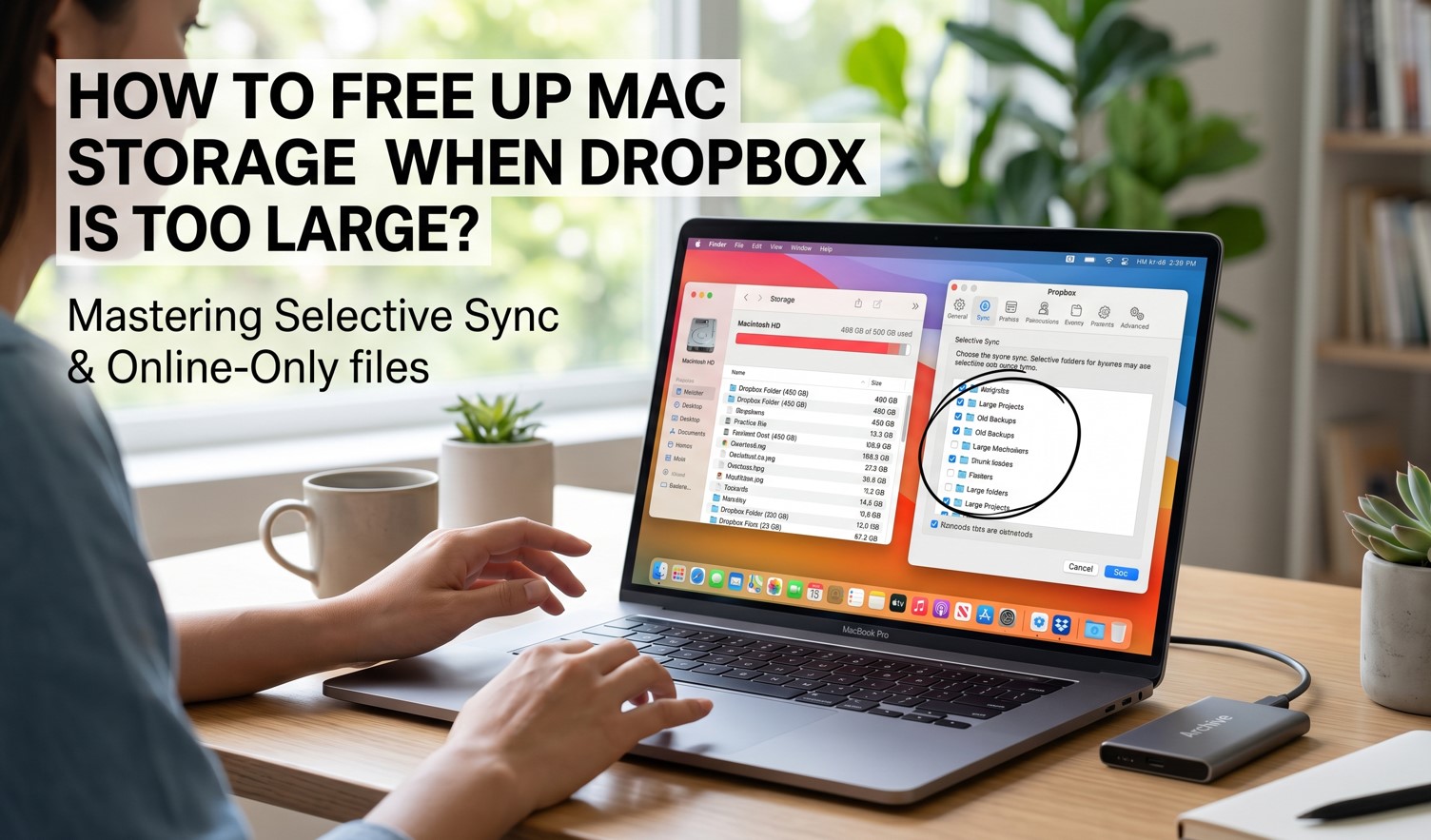
Instead of just syncing everything, you can enter the Dropbox Preferences, choose Sync, and there you want to pick select folders. The idea is to use only a few of the folders that you actually need synced and not sync everything. It will not store locally the files you don’t want synced. This comes in handy if you ever need to share only some stuff locally, and it will naturally save quite a bit of space.
Or you can use Smart Sync, which lets you view files in your Dropbox without taking up space on your Mac. That’s very useful because it does make the process much easier. Right-click the file/folder you want to enable smart sync for, then choose to make it online only. It will request you to reconsider, but you will press update anyway, and you will be good to go.
Clear the Dropbox app Cache
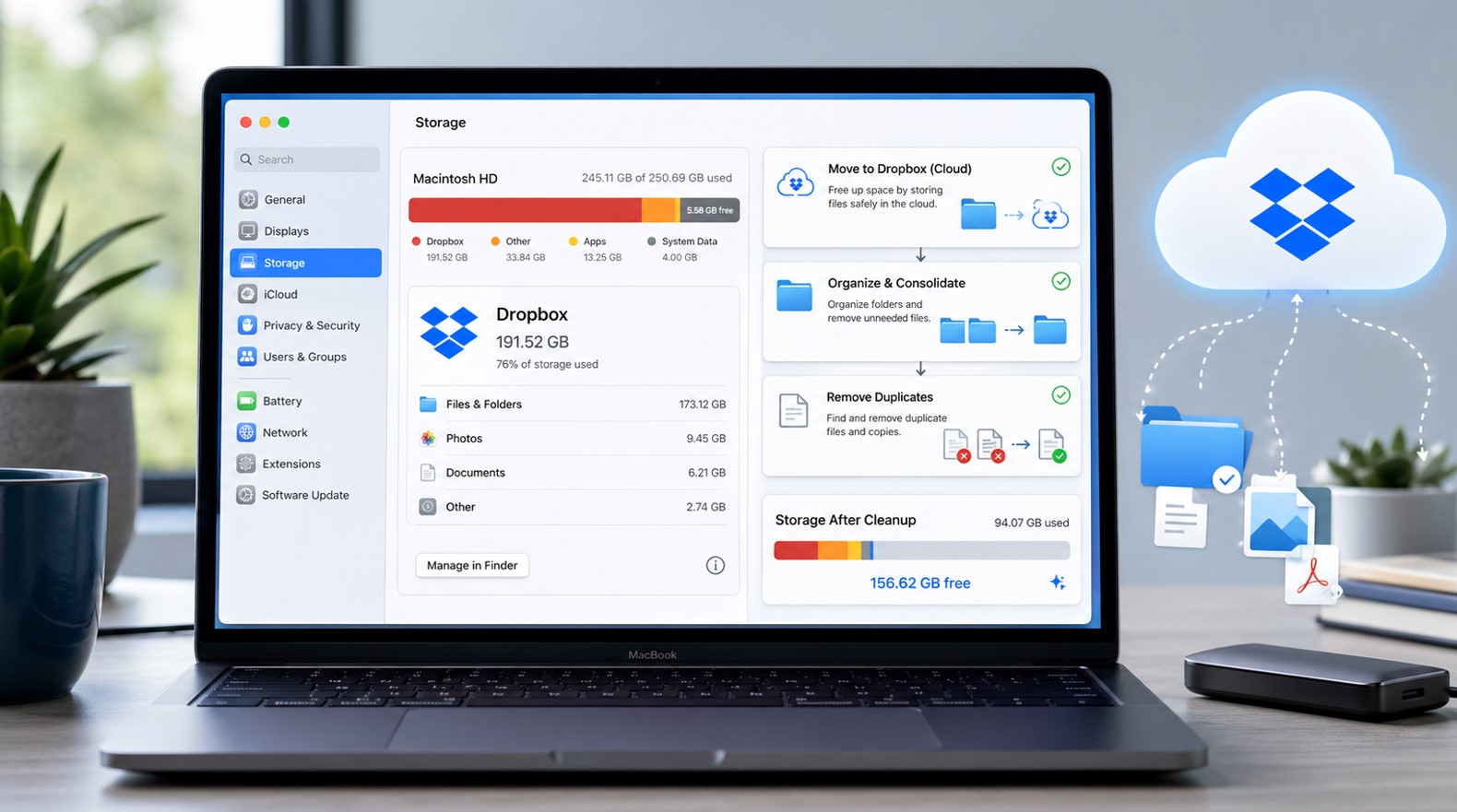
Using these tips to free up space can be very helpful, and this one is easily done with a Mac cleanup tool. The advantage here is that you will be able to remove unwanted files and temporary stuff, along with the Dropbox cache. Doing so will help save quite a lot of space, and that alone is extremely important to consider.
Reinstall Dropbox
Sometimes, the best approach is to just reinstall Dropbox. Maybe the app installation is not ok, or there might be some issues with the app anyway. So, if you reinstall, chances are that you might be able to solve a multitude of these issues. It certainly makes sense to try it, especially if some simple solutions don’t really seem to work out the way you want.
Delete Unnecessary Files
You don’t need to keep all files in your Dropbox. Just enter the folder and see what files are stored and also what can be removed. It’s a nifty idea just because it will make it easier to clean up and ensure that you just keep the files that you need. It will be a great option to consider, and the best part is that you can free up space without too many concerns, which is always great.
The upside is that you can do this as many times as you want, no matter the situation. It’s a good approach for people who store a lot of items in their Dropbox, but they rarely delete stuff. And while a lot of people are uploading content to Dropbox, not everyone is carefully managing what they have there. And it’s the main issue why they are dealing with this type of situation.
Is It Necessary to Keep Dropbox Files on Your Mac as Well?
A lot of the time, this will help because if you delete anything by accident, you will have a copy stored safely in Dropbox. And realistically, these situations happen a whole lot more often than you realize. The good thing about Dropbox is that it will give you a copy of the stuff you want, and it will be there to deliver excellent value and consistency, more than you might expect. It definitely takes some trial and error to narrow down what files to delete, but it’s always worth it.
The thing we have to note about Dropbox is that it doesn’t automatically delete items for you. That means you are the one that needs to delete items, and if you are not doing it, then that will become an issue. At the end of the day, what truly matters is how you are approaching this situation and how well you are managing your files. More often than not, it’s going to lead to a great experience, because you will be able to disable syncing and do tasks that will help streamline your storage.
Conclusion
We highly recommend using all these tips if you want Dropbox to stop taking so much space on your Mac. At the end of the day, you need that space for something else, most likely. And there are methods you can use to speed things up and not deal with problems.
It’s definitely not a walk in the park, but if you are doing it right, the outcome will be very good. Just make sure that you are continually monitoring how much space Dropbox is eating up and then remove unnecessary files as needed.
Please support our ongoing projects by sharing this post across your social media networks and adding it to your bookmarks. If you have an exciting idea or require professional artistic services, we would love to hear from you. You can write directly to the BandurArt team at any time to discuss potential creative or commercial collaborations.